GPT Image 2.5: How to use it, Flare vs Sunburst, and API pricing
To use GPT Image 2.5, ask ChatGPT to create an image or call the Images API with gpt-image-2.5-flare or gpt-image-2.5-sunburst. Choose Flare for quick iterations; choose Sunburst when precise edits matter more than waiting time. This guide walks through a product-photo brief, a targeted edit, and the checks to make before exporting.
OpenAI released ChatGPT Images 2.5 on September 8, 2026 (opens in a new tab), with rollout across ChatGPT, ChatGPT Work, and Codex plans. It turns text and reference images into new images and edits. You can also open VizGPT's image workspace (opens in a new tab) to work on your own image briefs.


Cover: OpenAI's official ChatGPT Images 2.5 example. (opens in a new tab)
- GPT Image 2.5: How to Use It, Flare vs Sunburst, and API Pricing
- How to Use DeepSeek Harness: Install, Set Up, and Run Your First Agent
- Runcell Science: An Open Source Alternative to Claude Science for Research Workflows
- How to Make Mac Not Sleep: Keep Codex, Claude Code, and AI Agents Running
- OpenClaw vs ZeroClaw vs Pi Agent vs Nanobot: Which AI Agent Stack Should You Choose in 2026?
- Can Claude Code Analyze Jupyter Notebooks for Data Science? What It Actually Does
- Claude Code Routines: Why AI Agent Cron Jobs Matter
- Claude Code Desktop Bypass Permissions: How to Enable It
- How to Build Two Python Agents with Google’s A2A Protocol - Step by Step Tutorial
- Top 10 growing data visualization libraries in Python in 2025
What changed in GPT Image 2.5?
OpenAI reports up to 50% lower generation latency than Images 2.0, along with better reference-subject preservation, natural lighting, textures, and consistency across successive edits. That latency figure is a vendor comparison, not a guaranteed time per image. The release also adds Sketch, image comments, templates, and prompt sharing in ChatGPT. Source: OpenAI announcement (opens in a new tab).
The practical question is whether changing one detail leaves everything else usable. A product photo that loses its label after a background edit still needs another revision.
Official example: preserve the portrait, change the clothing
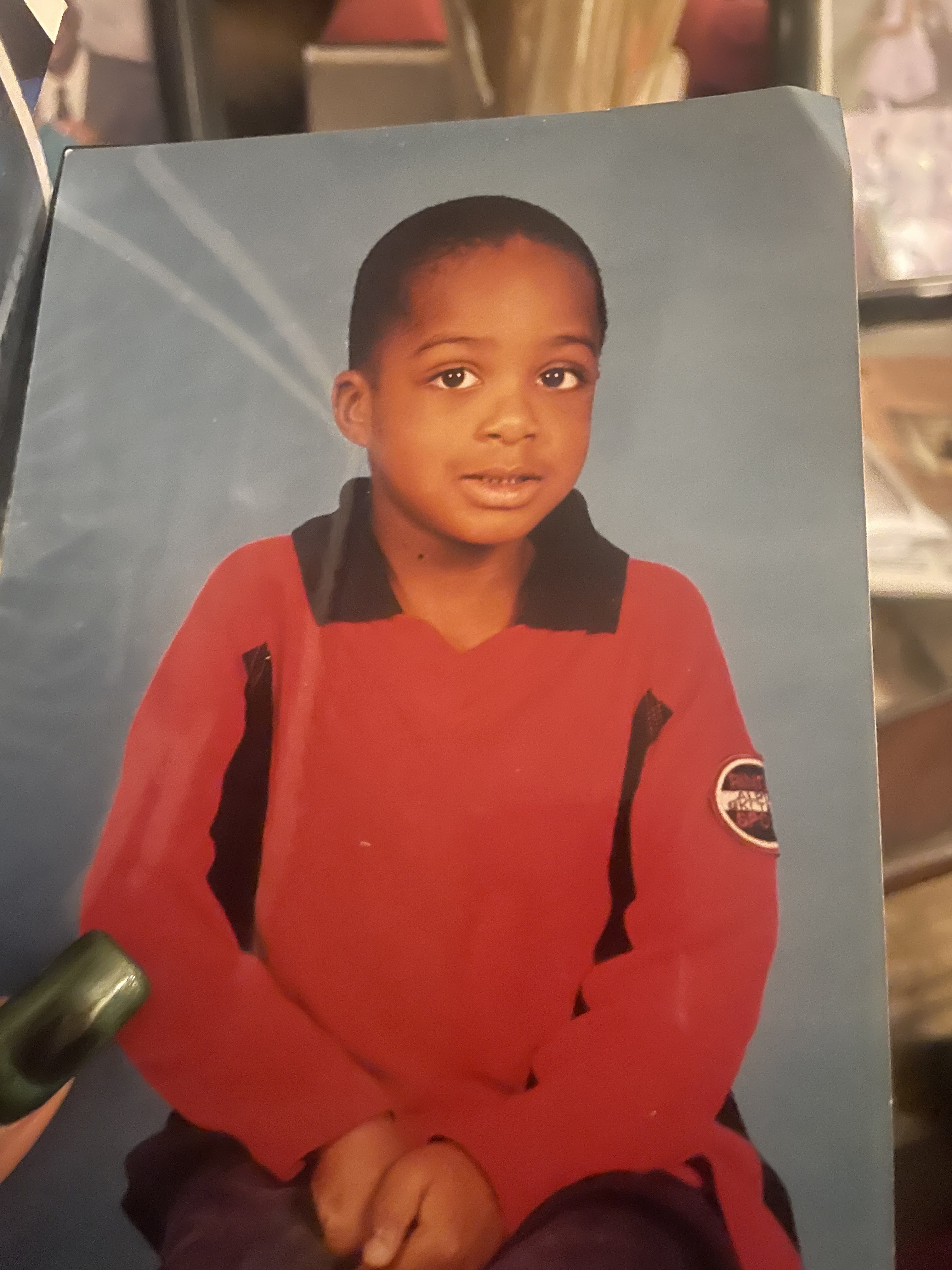
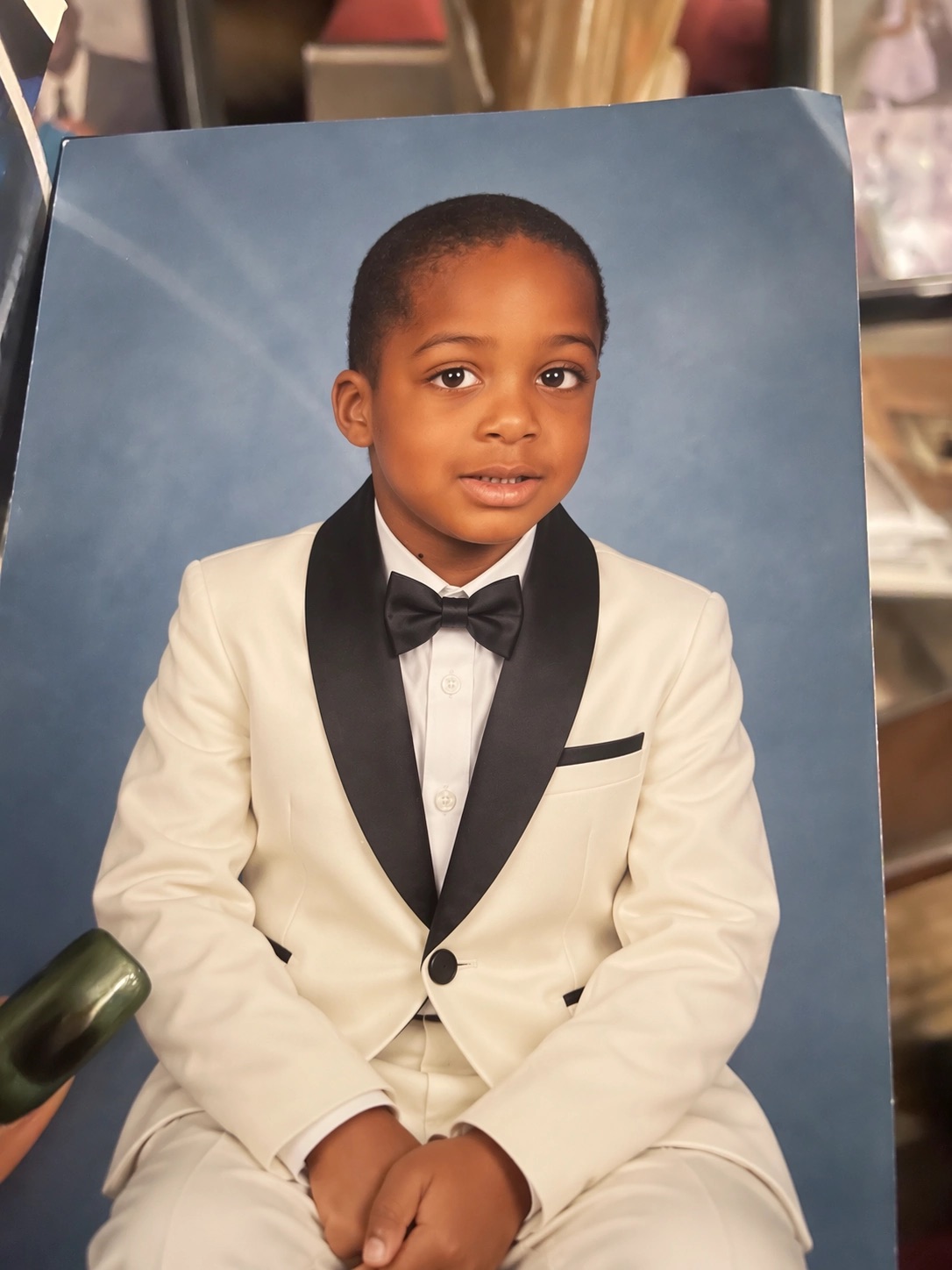
Images: OpenAI's Images 2.5 release example (opens in a new tab), rehosted for this article. These are official examples, not our generated results. Compare the face, blue backdrop, and printed-photo edges as well as the changed clothes.
Flare or Sunburst: which should you use?
| Your task | Starting choice | What to inspect |
|---|---|---|
| Explore several visual directions | Flare | Whether the composition answers the brief |
| Make everyday social or product-image drafts | Flare | Text, object shape, and consistency between variants |
| Refine a selected campaign image | Sunburst | Whether local changes preserve the approved parts |
| Edit detailed product photography | Sunburst | Label geometry, texture, edges, and unwanted changes |
This is a workflow recommendation based on OpenAI's positioning of Flare (opens in a new tab) and Sunburst (opens in a new tab). Both accept text and images and support low, medium, high, xhigh, max, and auto quality settings. A higher setting is worth comparing on your hardest image, rather than applying to every draft.
Create a product image, then make one edit
1. Write the image brief
Open ChatGPT (opens in a new tab) and ask it to create an image. If you need a specific subject preserved, upload its reference photo. Start with one deliverable and describe the composition before adding decorative detail. OpenAI's image prompting guide (opens in a new tab) recommends explicit text, reference roles, and preservation constraints.
Here is an original prompt you can adapt:
Create a square studio product photograph of a cobalt-blue ceramic mug.
Place the mug slightly right of center, handle facing right.
Use a pale gray background and soft light from the left.
Leave the upper-left quarter empty for a headline I will add later.
Keep the ceramic texture visible. Do not add text, logos, or extra objects.
Adding the headline afterward makes it easier to revise campaign copy without regenerating the photograph. If the image must contain text, quote the exact wording and specify its location.
2. Change only one thing
Continue with the selected image in the same conversation. Try this edit:
Change only the background from pale gray to warm beige.
Preserve the mug's shape, cobalt-blue color, handle direction,
position, ceramic texture, lighting, and shadow.
Keep the upper-left space empty. Add no new objects or text.
If spatial instructions are hard to express, type @Sketch in ChatGPT to draw a layout reference. Image comments can identify the part you want changed. These controls are described in the release announcement (opens in a new tab).
3. Check the result before another revision
| Check | Pass condition for this brief | If it fails |
|---|---|---|
| Requested change | Background is warm beige | Restate the requested color without adding other edits |
| Subject preservation | Mug silhouette, handle, and blue finish match the selected image | Return to that image and repeat the preservation constraints |
| Layout | Empty headline space remains available | Specify which region must stay empty |
| Detail | Rim, handle join, and shadow remain plausible | Inspect the full-size output and request a focused correction |
Save the version you approve before making the next change. Our checklist is a suggested review procedure; it is not a benchmark result.
Use GPT Image 2.5 with the API
For a single image, use the Images API. For an application that carries image edits across a conversation, use the Responses API image-generation tool. The image model belongs in the tool's model field in that second approach, alongside a supported mainline model at the request's top level. Official API guide (opens in a new tab).
Install the Python SDK in your environment:
python -m pip install --upgrade openaiSet OPENAI_API_KEY in your environment, then save this as generate_image.py:
import base64
from pathlib import Path
from openai import OpenAI

client = OpenAI()
result = client.images.generate(
    model="gpt-image-2.5-flare",
    prompt=(
        "Create a square studio product photo of a cobalt-blue ceramic mug. "
        "Pale gray background, soft light from the left, handle on the right. "
        "Leave the upper-left quarter empty. No text or extra objects."
    ),
    size="1024x1024",
    quality="medium",
)

Path("mug.png").write_bytes(base64.b64decode(result.data[0].b64_json))
Run the script to request an image and write the returned data to a PNG file:
python generate_image.pySwitch the model string to gpt-image-2.5-sunburst to compare the same brief. This example was checked against the September 8 documentation; our live request stopped at API authentication, so we do not claim a successful generation test. If authentication fails, check your key and API project access before changing the prompt.
What does GPT Image 2.5 cost?
The official model pages list the following rates for both Flare and Sunburst, in US dollars per million tokens:
| Token category | Standard input | Cached input | Output |
|---|---|---|---|
| Text | $5 | $1.25 | — |
| Image | $8 | $2 | $30 |
Sources: Flare pricing (opens in a new tab) and Sunburst pricing (opens in a new tab). These are token rates, not a flat price per image. OpenAI says the GPT Image 2 calculator does not estimate 2.5 token consumption, so do not use an older model's per-image estimate as a 2.5 quote.
Start your next image brief in VizGPT
Open VizGPT's image workspace (opens in a new tab), choose the model shown in the generator, and adapt the mug brief to your own subject. Start with a usable composition, select the result you prefer, and make one change at a time.
For data-heavy visuals, keep chart values in a plotting tool and use image generation for surrounding illustration. Our Python visualization guide covers libraries for charts whose geometry must reflect actual data.
FAQ
What are the GPT Image 2.5 API model names?
Use gpt-image-2.5-flare or gpt-image-2.5-sunburst. The model pages also list dated September 8, 2026 snapshots.
Is GPT Image 2.5 always twice as fast?
No. OpenAI reports up to 50% lower latency compared with Images 2.0. That does not guarantee a fixed speedup for every prompt or setting.
Which model should I start with?
Start with Flare for quick drafts. Compare Sunburst when preserving detail through edits is the main requirement.
Related Guides
- Stable Diffusion prompt guide
- Prompt generators for Stable Diffusion
- Python data visualization libraries
- How to use Codex