How to Make Mac Not Sleep: Keep Codex, Claude Code, and AI Agents Running


The fastest answer depends on what you mean by "Mac not sleep."
- If the lid stays open and you only need a temporary keep-awake session,
caffeinateis enough. - If you want to close a MacBook lid while a task keeps running, you need lid-closed sleep control.
- If you are running Codex, Claude Code, Cursor agents, local scripts, builds, or model jobs, a visible toggle is safer than memorizing
pmsetcommands.
For the third case, use Macchiato (opens in a new tab): a small Mac menu bar app that keeps your Mac awake, including lid-closed use, with one on/off switch.
The command-line version is simple but easy to misuse:
# Disable sleep, including lid-close sleep behavior.
sudo pmset -a disablesleep 1

# Restore normal macOS sleep behavior.
sudo pmset -a disablesleep 0
That second command matters. The hard part is not finding a command. The hard part is remembering to turn normal sleep back on after the agent, build, or automation job has finished.
- Runcell Science: An Open Source Alternative to Claude Science for Research Workflows
- How to Make Mac Not Sleep: Keep Codex, Claude Code, and AI Agents Running
- OpenClaw vs ZeroClaw vs Pi Agent vs Nanobot: Which AI Agent Stack Should You Choose in 2026?
- Can Claude Code Analyze Jupyter Notebooks for Data Science? What It Actually Does
- Claude Code Routines: Why AI Agent Cron Jobs Matter
- Claude Code Desktop Bypass Permissions: How to Enable It
- How to Build Two Python Agents with Google’s A2A Protocol - Step by Step Tutorial
- Top 10 growing data visualization libraries in Python in 2025
Quick Answer by Use Case
| Search intent | What the user really means | Best answer |
|---|---|---|
| "How to make Mac not sleep" | Keep Mac awake while the lid is open | Use caffeinate or Macchiato |
| "How to stop Mac sleeping when lid is closed" | Keep a MacBook running after closing the lid | Use Macchiato or pmset disablesleep |
| "How to keep Codex running when Mac sleeps" | Codex is doing work locally and sleep may interrupt it | Turn Macchiato on before stepping away |
| "How to keep Claude Code running overnight" | Claude Code is executing a long task while you are away | Use a visible keep-awake toggle, then turn it off |
| "How to stop AI agent from stopping on Mac" | Any local agent, build, script, or model run needs continuity | Prevent sleep only for that work session |
| "How to re-enable Mac sleep" | Sleep was disabled and the Mac no longer rests normally | Turn Macchiato off or run sudo pmset -a disablesleep 0 |
Most command-focused answers solve only the first row. The agent workflow usually lives in the middle rows.
Why Use Case Matters More Than the Command
Many people searching this topic do not want a macOS power-management lesson. They have a concrete interruption problem:
- a Codex task is still editing or testing code;
- a Claude Code session is running a multi-step command;
- a local AI agent is using the repo, shell, or browser;
- a data job, export, download, or model run is still active;
- they need to close the lid and leave the desk.
If the answer only says "run caffeinate," it may solve the wrong problem. caffeinate helps with ordinary idle sleep. The harder use case is lid-closed work, where the MacBook would normally sleep to protect battery and thermals.
That is why this guide is organized around use cases first and commands second.
Why caffeinate Is Not Enough Anymore
caffeinate is the classic answer to "how to make Mac not sleep." It is still useful for simple sessions where the Mac stays open.
For example, this keeps the Mac awake while the command is running:
caffeinateThis keeps the Mac awake for one hour:
caffeinate -t 3600This keeps the Mac awake while a build runs:
caffeinate npm run buildThe limitation is the modern workflow. In 2026, many people are not just waiting for a download. They are leaving an AI agent, local dev server, notebook job, test suite, video export, or model run active while they step away.
If the lid stays open on a desk, caffeinate can be fine. If you want to close the MacBook, put it aside, or carry it to another room while an agent keeps working, you need to think about lid-closed sleep, not just idle sleep.
Use Case 1: Make a Mac Not Sleep While the Lid Is Open
Use this when you are still near the computer and just want a process to finish.
Good examples:
- a file download;
- a package install;
- a build or test command;
- a short data export;
- a local dev server during a meeting.
For this case, a simple command is acceptable:
caffeinate -t 3600This keeps the Mac awake for one hour. The risk is low because you are not changing lid-closed behavior and the command has a natural time limit.
Use Case 2: Keep a Mac Awake With the Lid Closed
This is the use case where many simple answers fail.
When you close a MacBook, macOS normally treats that as a strong sleep signal. That is useful for battery and heat. It is not useful when the machine is halfway through a long local task.
For lid-closed work, use Macchiato or direct pmset control:
sudo pmset -a disablesleep 1Then restore normal behavior:
sudo pmset -a disablesleep 0If you do this often, use a visible toggle instead of relying on memory.
Use Case 3: Keep Codex, Claude Code, or Local Agents Running
AI coding agents change the sleep problem because work continues after you stop typing. Codex, Claude Code, Cursor agents, local browser agents, and notebook agents may still be reading files, running tests, calling tools, or waiting for commands.
Use this workflow:
- Start the agent task.
- Confirm it is safe to leave running.
- Turn Macchiato on.
- Close the lid or step away.
- Return, review the result, and turn Macchiato off.
This is better than teaching every user a terminal command because the visible app state matches the real question: "Is my Mac currently allowed to sleep normally?"
The Real Pain: You Forget to Turn It Back
The risky part of sleep control is not the command itself. It is human memory.
The common workflow looks like this:
- Start a long-running task.
- Disable sleep with a terminal command.
- Close the lid and leave.
- Come back later.
- Forget to restore normal sleep.
That last step is where the problem grows. If sleep stays disabled, the Mac can continue consuming power when you expected it to rest. On battery, that can mean avoidable drain. In a closed bag, it can mean heat. Over time, this is a bad habit for both battery health and hardware comfort.
This is why a one-button app is more practical than a raw command for everyday use.
Recommended: Use Macchiato
Macchiato (opens in a new tab) is a small macOS menu bar utility built for this exact workflow: keep your Mac awake while long-running work continues, including lid-closed use, then restore normal sleep with the same switch.
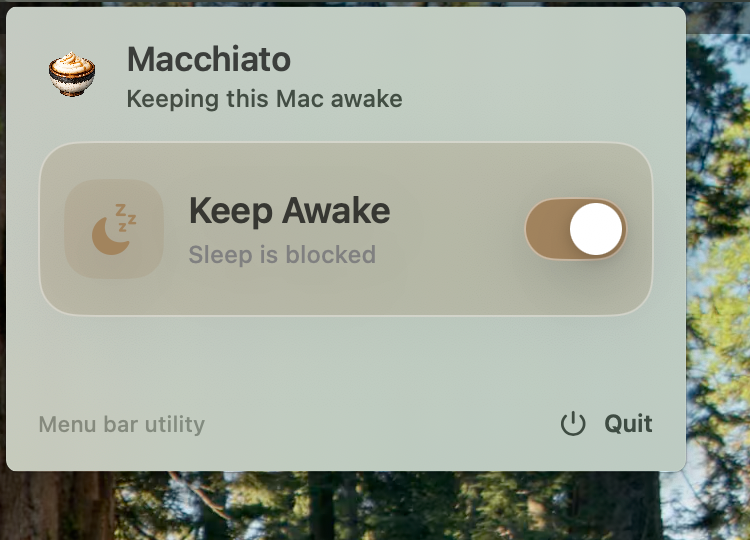
The core behavior is intentionally simple:
| Macchiato state | What happens |
|---|---|
| On | The Mac stays awake, including when the lid is closed |
| Off | macOS returns to normal lid-close sleep behavior |
That is the whole point. You do not need to remember whether you used caffeinate, which shell tab is still open, or whether pmset is still set to disable sleep.
How to Install Macchiato
- Open the Macchiato GitHub repo (opens in a new tab).
- Go to Releases (opens in a new tab).
- Download the packaged
Macchiato.dmg. - Open the DMG and install the app locally.
- Launch Macchiato and use the menu bar icon.
On first use, macOS may ask you to approve the helper in System Settings. That approval lets Macchiato perform the privileged sleep-control work without asking for administrator credentials every time you toggle the switch.
How to Use Macchiato for Codex or Claude Code
Use this flow when Codex, Claude Code, or another local agent needs to continue while you are away:
- Start the agent task, build, model run, or script.
- Turn Macchiato on from the menu bar.
- Close the lid when you need to move or step away.
- Reopen the Mac and check the task result.
- Turn Macchiato off when the job no longer needs to keep running.
This fits AI coding workflows especially well because the work is local. If the Mac sleeps, the shell, local server, browser automation, or test process may pause or stop.
For Codex users, this is useful when a task is running commands, editing files, or validating a change in the local repo. For Claude Code users, it is useful when a session is running a longer build, test, or automation task. The point is not that Codex or Claude Code has a special sleep setting. The point is that the Mac running the agent must stay awake.
For broader context on this style of work, see How to Use Codex, Parallel Code Agents, and Best Vibe Coding Tools.
What Macchiato Does Under the Hood
Macchiato wraps the system behavior you would otherwise manage by hand.
The important restore command is:
sudo pmset -a disablesleep 0That tells macOS to allow normal sleep again. When sleep is disabled, the corresponding command is:
sudo pmset -a disablesleep 1Macchiato also uses macOS power assertions so the system knows an app is intentionally keeping the machine awake. You can verify that kind of assertion with:
pmset -g assertions | grep MacchiatoYou can also inspect the current sleep-disabled state:
pmset -g live | grep SleepDisabledMost users should not need these commands day to day. They are useful if you are debugging, validating the app, or recovering from a forced quit.
When to Use pmset Directly
Use pmset directly only when you want explicit terminal control and you are disciplined about restoring the setting.
Before leaving a long task running:
sudo pmset -a disablesleep 1After the task is done:
sudo pmset -a disablesleep 0The danger is that this state can outlive the task. If you run the disable command and forget about it, your Mac may keep behaving differently later. For one-off controlled sessions, that is acceptable. For repeated AI agent work, a visible menu bar toggle is safer.
Common Traps
Trap 1: Confusing display sleep with system sleep
Turning off the display is not the same as sleeping the Mac. Your screen can be dark while processes still run, or your Mac can sleep while the display is already off. For background jobs, you care about system sleep.
Trap 2: Assuming caffeinate solves lid-close sleep
caffeinate is useful for idle sleep. Lid-close behavior is stricter and can interrupt the exact work you meant to keep alive.
Trap 3: Forgetting the restore command
If you used pmset directly and want normal behavior back, run:
sudo pmset -a disablesleep 0Trap 4: Running hot in a closed bag
If a Mac is doing real work with the lid closed, it can still use CPU, network, disk, and battery. Keep an eye on heat and battery, especially before putting it into a sleeve or backpack.
Trap 5: Treating every task as worth keeping awake
Not every job deserves to override sleep. If a task can resume, restart, or run in the cloud, normal sleep may be the better default.
Troubleshooting Flow
| Symptom | Check | Fix |
|---|---|---|
| Mac still sleeps after closing the lid | Is Macchiato on? Was helper approval completed? | Turn Macchiato on and approve the helper in System Settings |
| Mac no longer sleeps normally | Is sleep still disabled? | Run sudo pmset -a disablesleep 0 or turn Macchiato off |
| You are unsure whether Macchiato is active | Check menu bar state or pmset -g assertions | Turn it off, then on again before the task |
| Battery drains unexpectedly | Sleep may be disabled or a process is still active | Restore sleep and inspect running jobs |
| A terminal command worked once but not later | The shell session or permission state changed | Use Macchiato for repeated toggles |
Safety Checklist
Before you close the lid on a running Mac:
- Plug in power when the job is long or CPU-heavy.
- Avoid sealed bags during active work.
- Confirm the task really needs to continue locally.
- Turn Macchiato off when the job is done.
- If anything seems wrong, restore sleep with
sudo pmset -a disablesleep 0.
This is the practical middle ground: keep the machine awake when work truly needs it, then let macOS protect battery and thermals the rest of the time.
FAQ
How do I make my Mac not sleep?
For a temporary open-lid session, run caffeinate in Terminal. For lid-closed work such as AI agents, Codex tasks, Claude Code sessions, or long builds, use Macchiato or run sudo pmset -a disablesleep 1, then restore normal sleep with sudo pmset -a disablesleep 0.
How do I stop a MacBook from sleeping when the lid is closed?
Use a lid-closed sleep control tool like Macchiato, or use sudo pmset -a disablesleep 1 directly. Remember to turn it off afterward with sudo pmset -a disablesleep 0.
Does caffeinate keep a Mac awake when the lid is closed?
caffeinate is mainly useful for preventing idle sleep while the system remains active. For lid-closed MacBook workflows, especially on battery, use a dedicated lid-closed sleep toggle or pmset instead.
How do I keep Codex running when my Mac would sleep?
Keep the Mac awake at the system level. Start the Codex task, turn Macchiato on, then turn it off when the task is done. Codex itself does not need a special sleep command; the Mac running Codex needs to stay awake.
How do I keep Claude Code running when I close my MacBook?
Use Macchiato before closing the lid, or use sudo pmset -a disablesleep 1 if you prefer Terminal. When the Claude Code task is finished, restore normal sleep with Macchiato off or sudo pmset -a disablesleep 0.
Why does my AI agent stop when my Mac sleeps?
Most local agents depend on the local shell, filesystem, browser, dev server, or test process. If macOS sleeps, those local resources may pause, disconnect, or stop making progress.
Is it bad to keep a Mac awake with the lid closed?
It is fine for controlled sessions, but it should not be your default state. Long lid-closed sessions can drain battery and create heat, especially if the Mac is unplugged or inside a bag.
What command restores normal Mac sleep?
Run sudo pmset -a disablesleep 0. That is the command to restore normal sleep behavior after disabling sleep.
Why use Macchiato instead of Terminal commands?
Macchiato gives you a visible one-button switch. That reduces the chance of forgetting that sleep is disabled after an AI agent, build, or script has finished.
Related Guides
- How to Use Codex
- Parallel Code Agents Explained
- Best Vibe Coding Tools in 2026
- 15 Best AI Coding Tools in 2026
- AI Agent Turns Jupyter Notebook Into a Data Science Co-Pilot